

# Did You Know
1, 000 Computers are used by a single Google query in 0.2 seconds to retrieve an answer.

Android Emulator is a software which can emulate the Android environment on a PC. So that you can enjoy Android apps and games without actually having an Android phone. This helps especially developers who need to test their Android apps. And some use it to play Android games on their PC. So here are some great Android emulators for Windows PC and Mac which runs the latest Android 10 environments.
Buy using emulators you can also configure the CPU, RAM and other parameters. It is also useful if you need to just install an app for experimental purpose and testing. Since there are plenty of apps available for Android, you can enjoy all of them on these Android emulators. If Some apps are not working on an emulator, you can use another one there is a list of plenty of android emulators.
>> List of Top12 Best Android Emulators For Windows 10 PC And Mac:-
Full Tutorial here: https://spyboy.blog/2020/05/03/best-android-emulators-for-windows-pc-and-mac/
# How to Protect Yourself from a Ransomware Attack?
Imagine a situation where you are locked out of everything in your computer systems. You can’t use any of your data, and your business is completely paralyzed. Above all, all the essential information about your company or clients is on the stake. The only way to get out of this mess is to pay some crooks boatloads of money in any form of cryptocurrency. Pretty scary, right? It’s called a ransomware attack, and it is more common than you think it is.

The only way to avoid being in this mess of a situation is to be very cautious of malicious software and links. However, there are few precautious steps that you can adopt to prevent a ransomware attack to happen.

How to Protect Yourself from a Ransomware Attack?
Here are some of the preventive measures that you should take to avoid all this mess:
1. Keep Your Antivirus Up to Date
I can’t stress enough on the importance of antivirus if you want to protect yourself from any kind of ransomware. The way it works is that it scans every operation that does on your system and alerts you if it detects any malware. This way, you remain safe from downloading or clicking anything that may contain malware that can end in a ransomware attack.
2. Always Scan and Filter Emails
Hackers and criminals usually send a link through email. When you click to that link sent by them, it gives them access to your system, and they crypt everything on your system. Hence, blocking you out of your computer and data. Therefore, it is imperative that you scan and filter every email before you open it. This way, you will never click a suspicious link or open a fraud email.
3. Regularly Create Back-up of What Matters
You need to understand the importance of your data. The only leverage criminals have on you is that they know that your data is your vulnerability, and you’ll do anything to get access to your data.
You won’t have to pay them anything if you have the most recent back-up of all the critical data about your business. Therefore, regularly create a back-up of all the important data. This way, you’ll never have to be blackmailed by those nasty criminals.
4. Make it Hard for The Attackers
They say that prevention is better than cure. This statement holds true in the case of ransomware attacks. You need to build your firewalls so strong that it becomes impossible for the criminals to find the loopholes in your system and penetrate into it.
One of the essential precautions is to apply the patches as soon as the software company launches them. It’ll help to close all the back doors that can provide a way for hackers to attack you.
5. Have a Plan for Worst Case Scenario
Where you are taking all kinds of preventive measures, it only makes sense that you always prepare yourself for the worst-case scenario. You can do so by having a company that offers to help you in averting the crisis on hand.
Final Words
I hope you would take these steps seriously as I have already stated that Ransomware attacks are the most common types of attack, also avoid clicking on unknown and suspicious links sent by anyone. Stay Safe, That’s it for now.
# Hack Of The Day
“ThisIsWhyImBroke.com”
one of the best website for finding a list of some weird unbelievable and cool products online.
# Google Stadia Now Let You Play PUBG, Without Download It
Google’s Stadia has been the latest favourite for the gaming community, as it doesn’t require one to have extensive hardware like in PlayStation or Xbox. Though it’s praised for that, many have worried about the catalogue of games it can have in the future. And Google today shines in that future by announcing the availability of PUBG and many other games in Stadia. The catalogue announced today even have some EA games coming on its platform soon.
Impressive Catalogue
Google’s cloud-based gaming, Stadia, is a breakthrough. But, many have doubted how Google can compete in the current duopoly gaming market, where Sony’s PlayStation and Microsoft’s Xbox are going neck-to-neck each other. Further, fans have worries about the quantitative gaming library Google can bring in. But now, vanishing all those speculations, Google announced a significant move of supporting PUBG in Stadia, along with other games.
After PUBG, other names like Octapath Traveler, Lara Croft and the Temple of Osiris (yet to come) from Square Enix are announced. Further, Google’s enrolling EA games too on Stadia. It announced a few titles like Star Wars: The Fallen Order, FIFA, and Madden NFL, and we expect more titles to be coming soon.
Besides these, Google’s have First on Stadia class too, which includes new games like getting Packed, Crayta, and Ember.
Play For Free
Google’s maintaining two types of subscriptions for its users: Stadia Base and Stadia Pro. While the former one is a free version, but limited. And the latter one is, of course, better than the former one with access to many games and features.
PUBG and many other games are available for Stadia Pro. You can play PUBG for $29.99 or $39.99 with Season Pass, but you can try for free now. As Google announced the Stadia Pro to be open until May’s end, you can play PUBG for free, which includes a season pass and an exclusive Stadia skin!
# Best Screen Recording Software for Windows 10
Welcome back, guys! Today I am back with a new topic to be discussed, which is about Screen Recording Software. I know what you people are thinking right now. And it should be because it is a natural habit of human beings.
What is Screen Recording Software, Right?
Well, I would like to tell you guys that screen recording software is a program and it allows you to make a screen capture of your computer with ease. This software can record all actions that happened on your computer screen. It does not matter that you are there or away from your computer. And it will capture all the things which are going to happen on your computer screen. You can use it to monitor and also to record video courses, games, etc.
Here are some great software you can use to take screenshots and record your PC workspace:
1. Icecream Screen Recorder
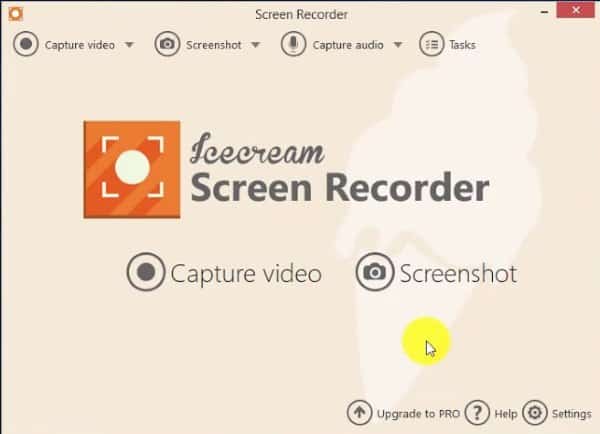
Icecream Screen Recorder is a tool which allows you to take video screenshot of your workspace. And it is easy and simple to use. It offers you a complete suite of tools and options for professional screen capture.
Download: icecreamapps.com/Screen-Recorder/
2. CamStudio
CamStudio is another best tool that allows you to monitor your desktop activities. Either in your presence in your absence as well. You can easily record out your computer with this software. It can record all screen and audio activities on your computer screen. And can create industry-standard AVI video files.
Download: sourceforge.net/projects/camstudio/
3. TinyTake
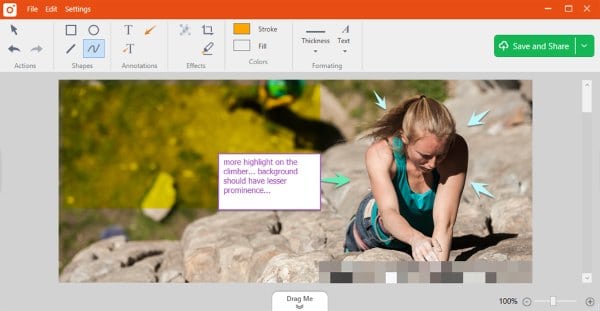
TinyTake is free to use screen video recording software. It is available for Microsoft, Windows, and Mac. Using TinyTake screen recording software. You can capture both images and videos of your computer screen. TinyTake also allows you to record computer screen. You can edit audio or videos, tweak the look and feel of the content. And you can define the branched scenario also. Which can be done very quickly and effectively.
Download: tinytake.com
4. Free Screen Video Recorder
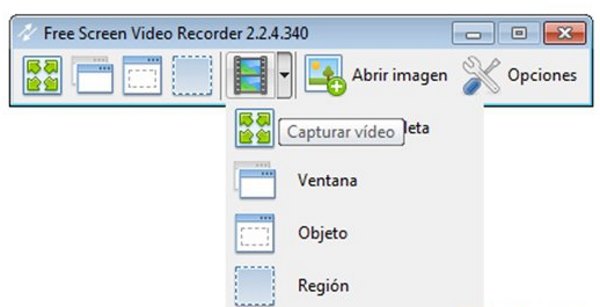
It is a compact screen video recorder and screenshot capture tool. It allows you to record screen activities easily and you capture everything on the computer screen. This will be including objects, menus, full screen, and rectangular regions. The concerned software takes a picture or video of the user’s computer screen. And also can upload it to the Web, FTP, computer or clipboard.
Download: dvdvideosoft.com/products/dvd/Free-Screen-Video-Recorder.htm
5. Snagit
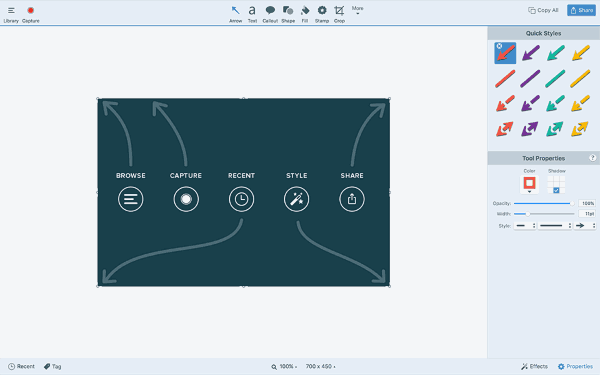
Snagit is a screen recording software. It gives you the complete tool for screen capture and video recording. Which you can perform on Windows and Mac. Combine traditional screenshots, video recording, image editing a and file sharing as well. It is fast and easy to use. Snagit prioritizes screenshot capturing and video recording. And editing of those shots or video clips. The video editing feature in Snagit has a strict limit.
Download: techsmith.com/screen-capture.html
6. ScreenFlow
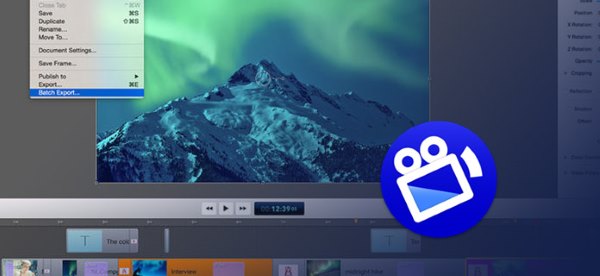
ScreenFlow is one of the most popular software. Which is mostly used by Mac users. However, this software is only available for Mac users. ScreenFlow is a software which is award-winning and easy to use video editing, screen recording and sharing tool from Telestream.
Download: telestream.net/screenflow/
7. Movavi Screen Capture Studio

Movavi Screen Capture Studio is one of the best screen recording software out there. It is available for Windows which allows a user to record their computer screen. The software is available with many screen recording and video editing tools. There is no limit on the length of the videos that you can record. This is one of the best, excellent and mind-blowing screen recording computer software.
Download: movavi.com/screen-recorder/
8. MadCap Mimic
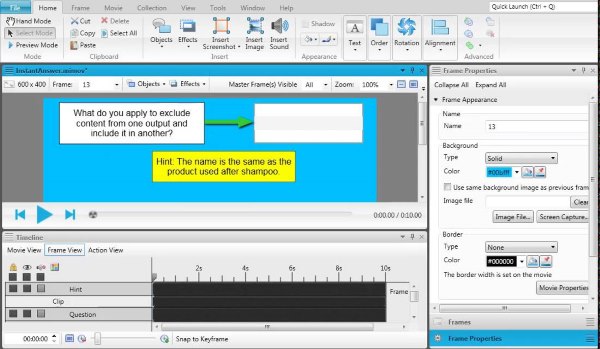
MadCap Mimic is again one of the most advanced screen recording tools. It can be used on your Windows 10 computer. This tool is great for creating interactive videos and simulations. For screen recording, MadCap Mimic offers three modes of operations to its users. And these are manual, automatic and full motion.
Download: madcapsoftware.com/videos/mimic/
9. Free Cam
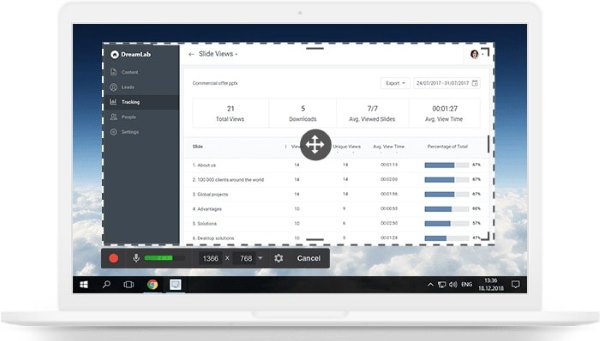
Well, if you people are searching for a free and easy to use screen recording software for your Windows 10 computer. Then you are suggested to install Free Cam. It allows you to create screenshots in the easiest manner. Apart from this the screen recording utility it also offers you guys to built-in audio and video editors as well. And again it is a free tool, and it does not put any kind of watermark on the videos.
Download: camstudio.org
10. EZVID
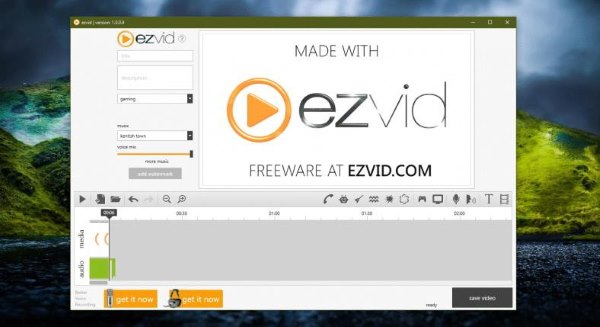
EZVID is a tool which helps you to record screen in the best quality. And this software is one of the best among available tools. Which lets you capture and record your computer screen in a natural way. EZVID is exceptional because of the power of its cutting edge.
It has more effects and features like voice recording, face cam, voice synthesis, screen drawing, and speed control. And some other features which you will not find in any other screen recording software. EZVID is the world’s best solution for making videos that entertain, inform and enhance you.
Download: ezvid.com/ezvid_for_windows
11. Camtasia 9
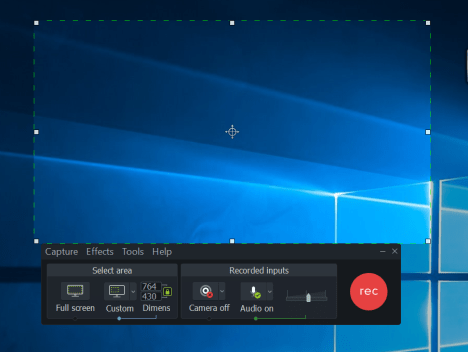
Camtasia comes into a much handy one to use. With a broad range of necessary tools very well-organized, it becomes easier to identify and use them. Camtasia 9 is the latest upgrades from Camtasia that comes with a 64-bit processor and is able to record 4k videos as well. In addition, it shares a variety of pre-build assets starting from the basic ones to many advanced effects.
Download Now: techsmith.com/video-editor.html
12. Atomic Active Presenter 7
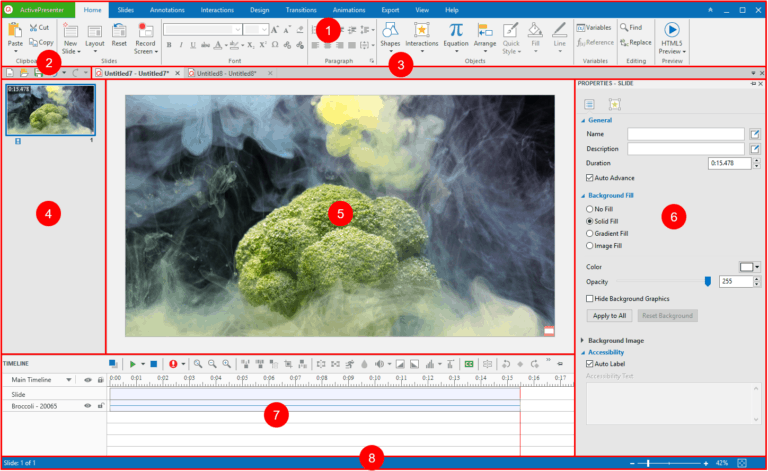
Atomic Presenter is a powerful screen recorder that is able to record every single part of your screen. However, the free version might not open all exclusive features for you. But the best part of this software is that you can make high-quality screencasts regardless of any time limit and no watermark over your videos. You can further use its free tools to add more creativity to your recorded videos. Moreover, you can export your videos in a variety of formats that includes all the major ones.
Download Now: atomisystems.com/activepresenter/free-edition/
# Technology Facts
Hardly you know, but 92% of the world exists in the digital form, meaning that 8% of the world’s currency is available in the Physical Form only.
